Guides
How to Install Hermes Agent on Mac with Docker
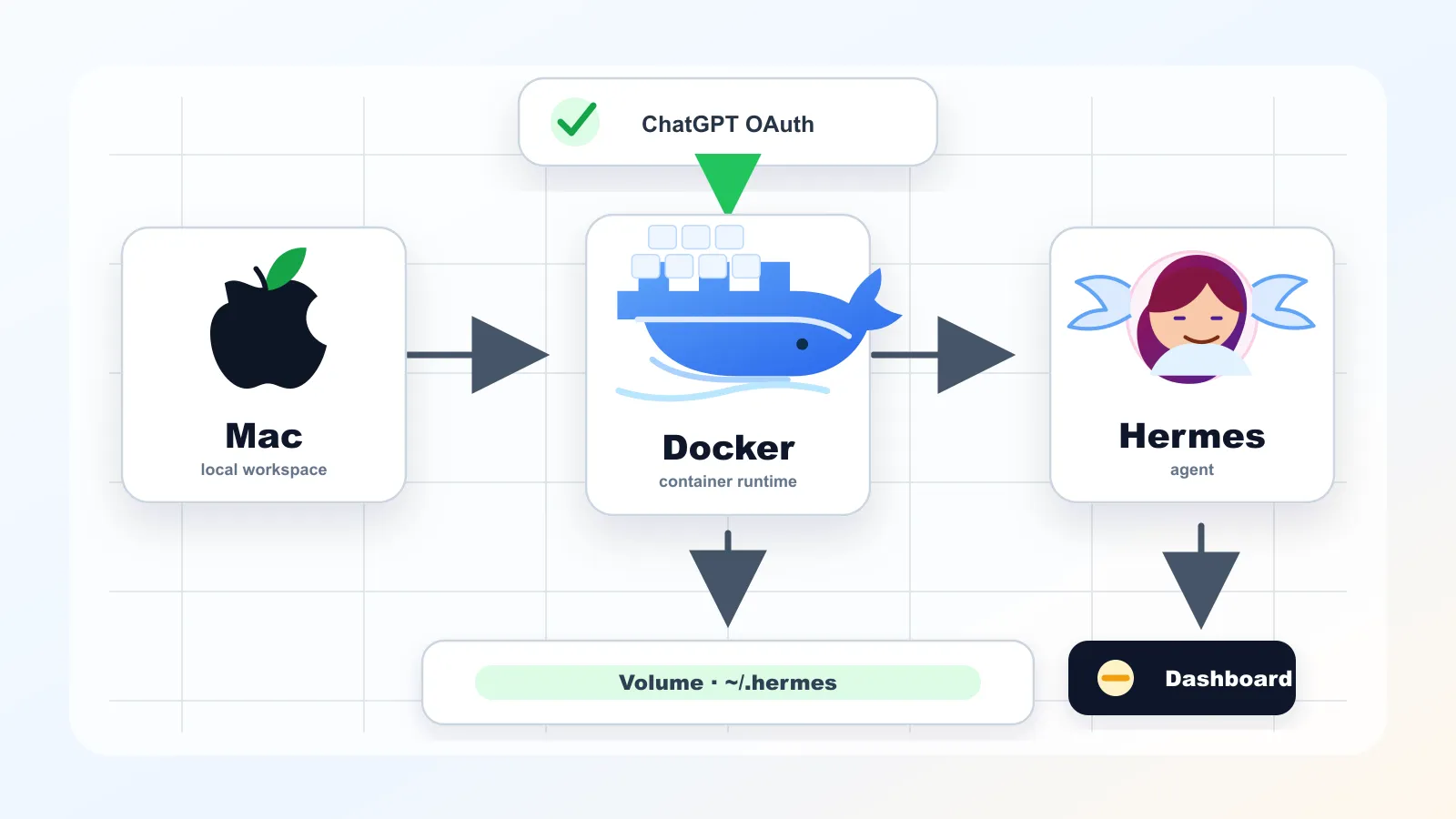
This guide explains how to run Hermes Agent on a Mac with Docker Desktop. The goal is to keep the setup reproducible: Docker runs the agent, while your Mac keeps the persistent Hermes data folder.
The model connection can be configured with API keys, but this guide focuses on the OpenAI Codex provider with ChatGPT OAuth. In practice, the cleanest order is: install Docker Desktop, run the official setup wizard, configure the provider, start Hermes Agent, then verify the web dashboard at localhost:9119.
Quick summary
- Install and start Docker Desktop for Mac first.
- Use the official Docker image:
nousresearch/hermes-agent. - Mount
~/.hermesto/opt/dataso settings, OAuth tokens, sessions, skills, and logs persist. - Run
setupfirst, then usehermes modelto choose the OpenAI Codex provider. - When the gateway is running with dashboard enabled,
http://localhost:9119should open the Hermes dashboard.
Requirements
| Requirement | Why it matters |
|---|---|
| Mac | Apple Silicon and Intel Macs can both work, but choose the matching Docker Desktop installer. |
| Docker Desktop | Required to run the Hermes Agent container. |
| Terminal | Used for Docker commands, setup, OAuth, logs, and checks. |
| ChatGPT account | Needed for the OpenAI Codex provider when using ChatGPT OAuth. |
| Internet connection | Needed to pull the Docker image and complete OAuth login. |
What Docker Changes
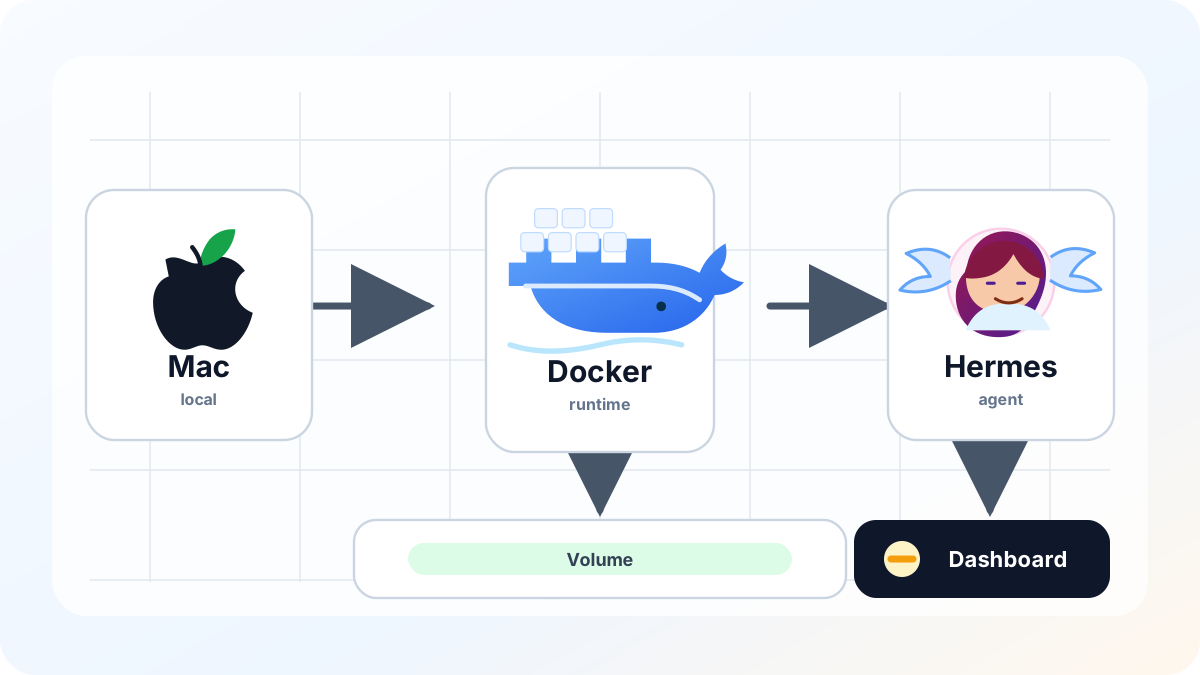
Hermes Agent is an AI agent runtime from NousResearch. The official documentation describes several ways to use it, including local installation, Docker execution, and Docker terminal backend usage. This guide is specifically about running Hermes Agent itself inside a Docker container.
The advantage is that the runtime is relatively isolated. You do not need to install Python, Node.js, browser automation dependencies, and related tools directly into macOS. The trade-off is that Docker Desktop must be running first, and file access should be understood through the folders you explicitly mount.
The official Hermes Docker documentation describes /opt/data as the user data location inside the container. That is why this guide maps your Mac’s ~/.hermes folder to /opt/data.
Install Docker Desktop
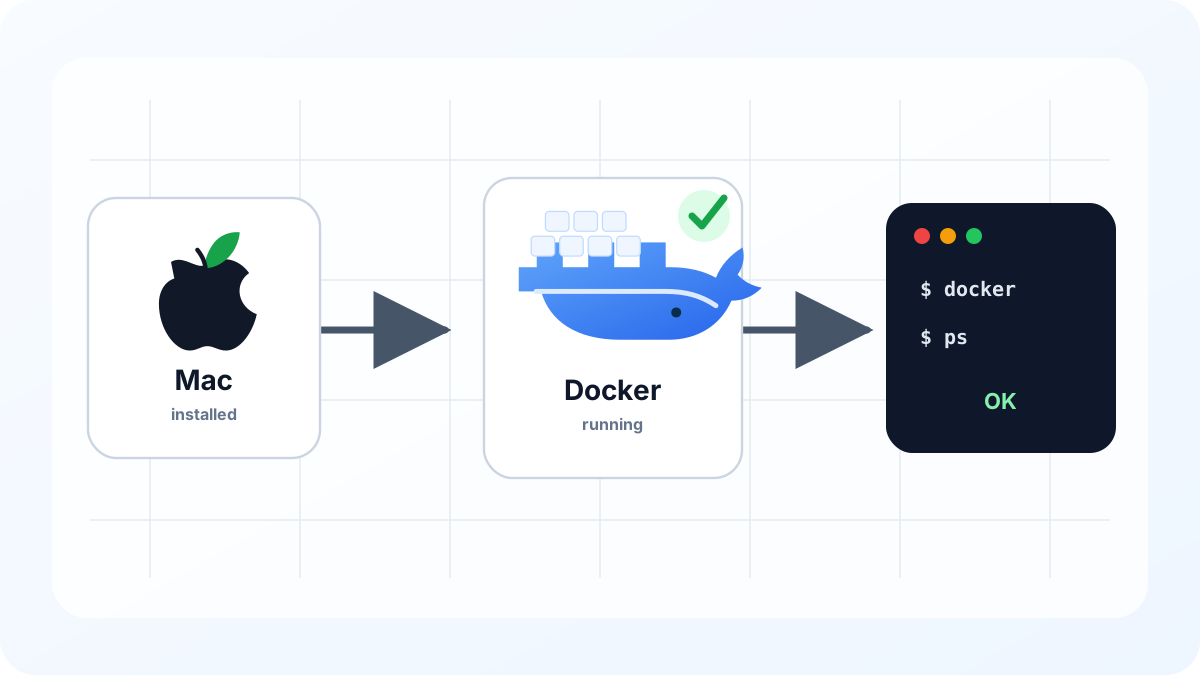
Download Docker Desktop from Docker’s official Mac installation page. Choose the Apple Silicon build for M-series Macs, or the Intel build for older Intel Macs.
The installation flow is straightforward.
- Download Docker Desktop from Docker’s official Mac installation page.
- Open
Docker.dmgand move Docker into the Applications folder. - Start Docker Desktop from Applications.
- Review the initial permission prompts and terms screen.
- Wait until the Docker icon is stable in the menu bar.
Then check the CLI:
docker --versionIf the command is not found, Docker Desktop may not be running yet, or the CLI integration may not have finished setting up.
Why Mount ~/.hermes
The volume mount is the part beginners should not skip. Without it, configuration and authentication can disappear when the container is removed.
Use the same mount for every Hermes command:
-v ~/.hermes:/opt/data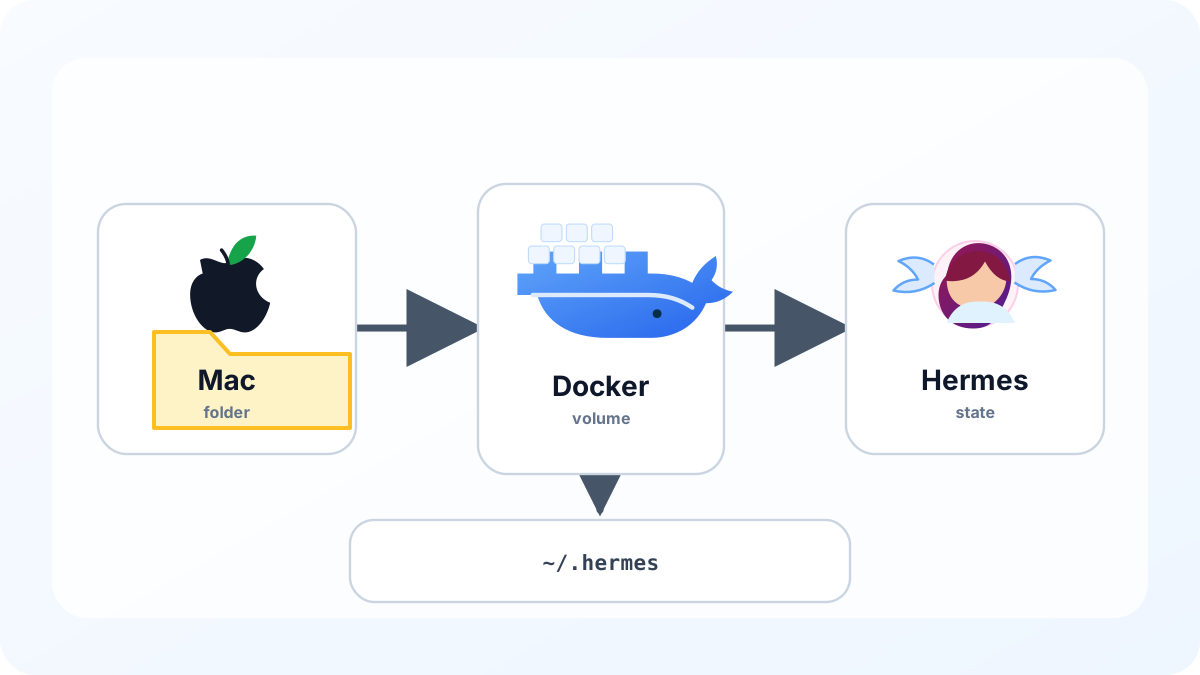
First Run: Start the Setup Wizard
Create the data folder and run the official setup flow:
mkdir -p ~/.hermes
docker run -it --rm \
  -v ~/.hermes:/opt/data \
  nousresearch/hermes-agent setup
The container is removed after the command because of --rm, but files created under /opt/data remain in ~/.hermes.
The setup wizard prepares the core data folder. Depending on the Hermes Agent version, it can create or update files such as:
| Location | Purpose |
|---|---|
~/.hermes/.env | Stores secrets for API-key-based providers when used. |
~/.hermes/config.yaml | Stores model, backend, gateway, and tool settings. |
~/.hermes/SOUL.md | Stores the default agent behavior and personality guidance. |
~/.hermes/sessions/ | Stores session history. |
~/.hermes/memories/ | Stores long-term memory data when enabled. |
~/.hermes/skills/ | Stores installed skills. |
~/.hermes/logs/ | Stores runtime logs. |
The exact prompts can change by Hermes Agent version, but beginners can use this rule of thumb.
| Setup prompt | Practical choice |
|---|---|
| Model provider | Choose OpenAI Codex or a Codex option. If it is not visible, finish setup and run hermes model later. |
| Authentication method | API-key providers store values in .env. ChatGPT OAuth stores tokens in an auth store such as auth.json. |
| Chat system or gateway integration | If you do not plan to use Telegram, Discord, or Slack immediately, configure them later. If you plan to run gateway long term, setting it up here can be convenient. |
| Unknown defaults | Keep defaults first, then adjust config.yaml after the install works. |
In other words, the recommended flow is to let setup create the base files and folders, then reopen model configuration with hermes model if provider selection feels unclear. If the setup screen already lets you choose OpenAI Codex and ChatGPT OAuth, it is fine to complete it there.
After setup, verify the folder:
ls -la ~/.hermesAlso confirm that config.yaml exists. Do not publish or share the full file; checking the first section locally is enough.
sed -n '1,80p' ~/.hermes/config.yamlAvoid printing or sharing .env, because it may contain secrets. To check only whether it exists:
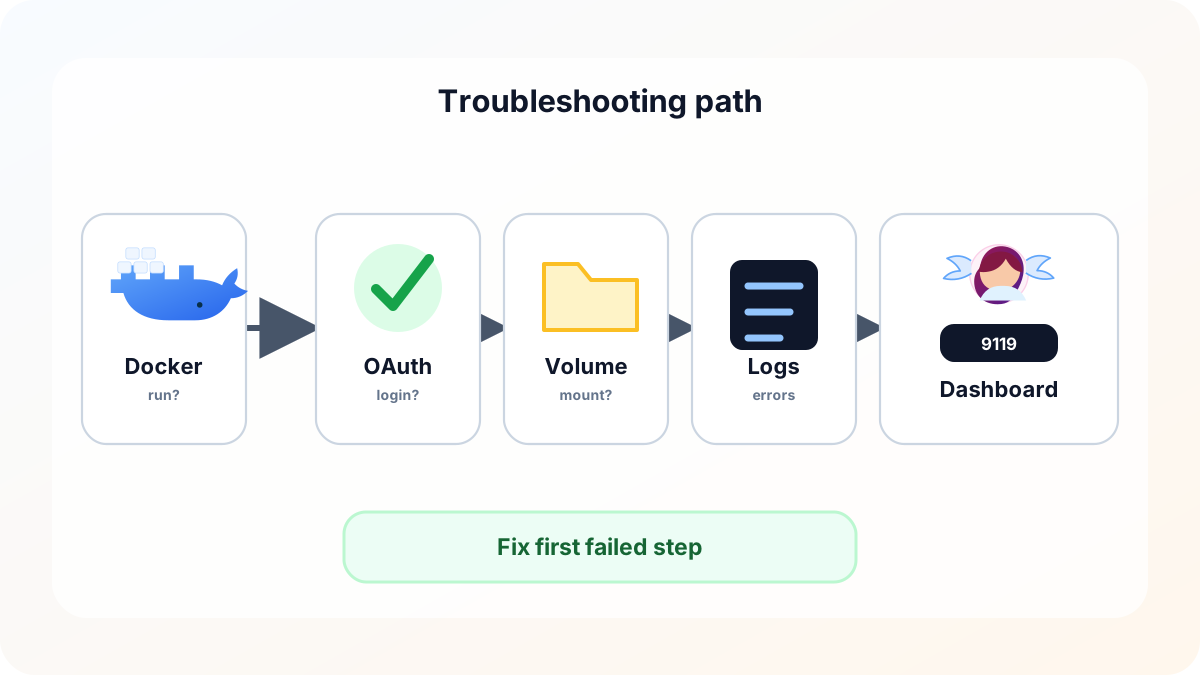
ls -la ~/.hermes/.envIf setup finishes but ~/.hermes/config.yaml is missing or the folder is empty, the volume mount is usually the first thing to check. Make sure the command includes -v ~/.hermes:/opt/data.
If you skipped provider selection during setup or want to change the model later, use hermes model in the next section. The important point is to keep using the same -v ~/.hermes:/opt/data mount afterward.
Configure ChatGPT OAuth
If setup did not finish provider selection, open the model picker:
docker run -it --rm \
  -v ~/.hermes:/opt/data \
  nousresearch/hermes-agent model
Choose OpenAI Codex or the closest Codex provider entry. If Hermes gives you a browser URL or device code, open it on your Mac and sign in with your ChatGPT account.
Some versions also support adding the OAuth credential directly:
docker run -it --rm \
  -v ~/.hermes:/opt/data \
  nousresearch/hermes-agent auth add openai-codex --type oauth
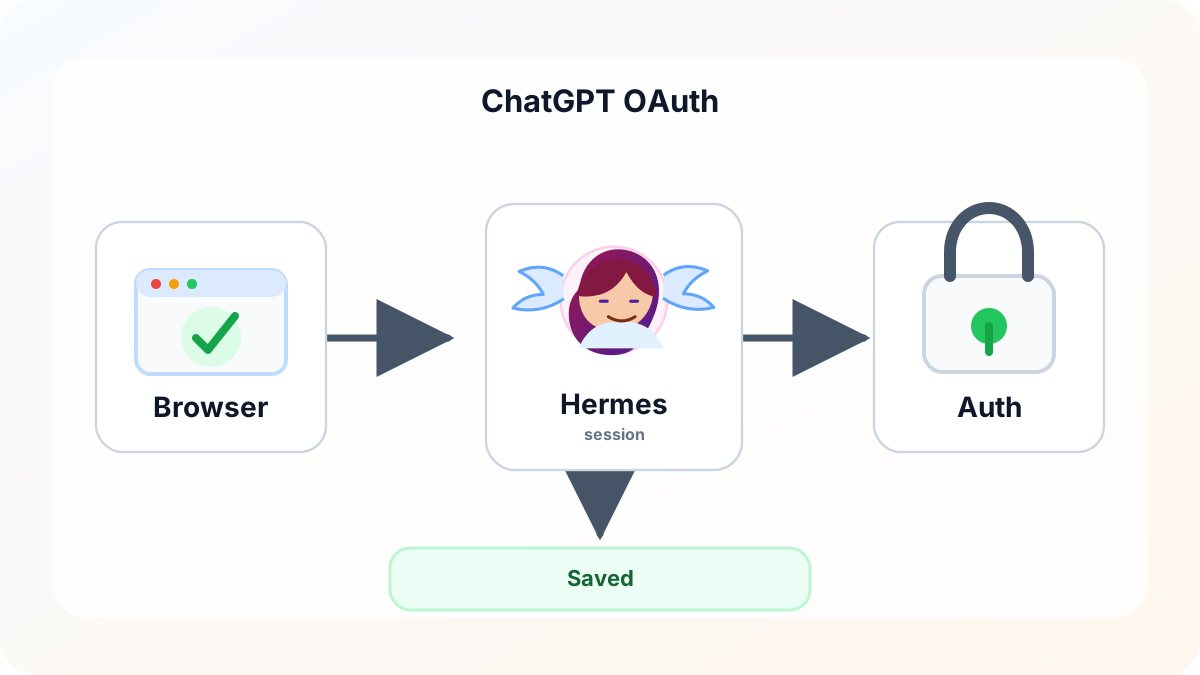
The OAuth token is not meant to live only inside a disposable container. It is stored under the mounted ~/.hermes data folder, in an authentication store such as auth.json. That lets you recreate the container while keeping the same provider setup.
Run Hermes Agent
After setup and provider configuration, start Hermes Agent interactively:
docker run -it --rm \
  -v ~/.hermes:/opt/data \
  nousresearch/hermes-agent
If the interactive session opens normally, the basic installation is working. Keep using the same volume mount for every command.
The command options mean:
| Option | Meaning |
|---|---|
docker run | Starts a new container. |
-it | Opens an interactive terminal session. |
--rm | Removes the temporary container after it exits. |
-v ~/.hermes:/opt/data | Connects the Mac ~/.hermes folder to /opt/data in the container. |
nousresearch/hermes-agent | Uses the official Hermes Agent Docker image. |
Check the Dashboard on localhost:9119
After setup, provider configuration, and the interactive run all work, check the installed image and version:
docker pull nousresearch/hermes-agent:latest
docker run -it --rm nousresearch/hermes-agent:latest version
To confirm the OAuth provider state, use the same data folder and inspect the auth list:
docker run -it --rm \
  -v ~/.hermes:/opt/data \
  nousresearch/hermes-agent auth list
For a background gateway with the web dashboard, expose both gateway and dashboard ports:
docker run -d \
  --name hermes \
  --restart unless-stopped \
  -v ~/.hermes:/opt/data \
  -p 8642:8642 \
  -p 9119:9119 \
  -e HERMES_DASHBOARD=1 \
  nousresearch/hermes-agent gateway run
Now open http://localhost:9119 in your Mac browser. http://127.0.0.1:9119 should work as well. The dashboard is a local management UI for settings, sessions, logs, skills, and other runtime information.
If the page does not load, check the HTTP response and logs:
curl -I http://127.0.0.1:9119Use logs for runtime details. When dashboard is enabled, log lines may include [dashboard].
docker logs --tail 50 hermesStop and remove the background container like this:
docker stop hermes
docker rm hermes
Common Problems
| Symptom | What to check |
|---|---|
Cannot connect to the Docker daemon | Docker Desktop is not running yet. |
docker: command not found | Docker Desktop CLI integration is not available in Terminal. |
| OAuth URL does not open | Copy the URL or device code from the container output into your Mac browser. |
| OpenAI Codex provider is not visible | Pull the latest Hermes Agent image and check the hermes model menu again. |
| Settings disappear after restart | The -v ~/.hermes:/opt/data mount is missing or different. |
| Permission error | Check that the current macOS user can write to ~/.hermes. |
| Dashboard does not open | Check -p 9119:9119, -e HERMES_DASHBOARD=1, and [dashboard] logs. |
| Port conflict | Another process may already be using 8642 or 9119. |
On Apple Silicon Macs, Docker Desktop usually handles architecture differences unless you force an Intel-only image. If an image or dependency is x86-only, performance or compatibility can vary. Start with the official latest image and an up-to-date Docker Desktop installation.
Update or Remove
To update, pull the newest image and recreate the container while keeping ~/.hermes:
docker pull nousresearch/hermes-agent:latest
docker rm -f hermes
docker run -d \
  --name hermes \
  --restart unless-stopped \
  -v ~/.hermes:/opt/data \
  -p 8642:8642 \
  -p 9119:9119 \
  -e HERMES_DASHBOARD=1 \
  nousresearch/hermes-agent gateway run
To remove the container and image:
docker rm -f hermes
docker rmi nousresearch/hermes-agent:latest
Delete ~/.hermes only if you also want to remove settings, OAuth tokens, sessions, skills, and logs.
rm -rf ~/.hermesKey Takeaways
The reliable Docker setup is simple: install Docker Desktop, run setup, configure OpenAI Codex with ChatGPT OAuth, keep ~/.hermes mounted to /opt/data, and confirm the dashboard at http://localhost:9119 when running gateway mode.
Sources
- Hermes Agent Docker documentation
- Hermes Agent Web Dashboard documentation
- Hermes Agent AI Providers documentation
- Hermes Agent Credential Pools documentation
- Hermes Agent installation documentation
- NousResearch Hermes Agent GitHub installation document
- NousResearch Hermes Agent GitHub repository
- Docker Desktop Mac installation documentation
- Docker Desktop Mac permission documentation
-
Docker Hub
nousresearch/hermes-agentimage